
Shopify integration for price monitoring and repricing
Connect Shopify to PriceZag to import products, keep your selling prices in sync, and apply repricing rules based on competitors' prices and stock.
If you sell through Shopify, you can connect your store directly to PriceZag. The integration handles three practical jobs: importing your products, keeping PriceZag informed of your current selling prices, and sending calculated prices back to Shopify when you use automatic repricing.
You don't need to maintain a spreadsheet to transfer your products and price updates between the two systems. PriceZag handles the connection, while you decide which products to monitor, which competitors matter, and whether to apply repricing rules.
One connection between Shopify and PriceZag
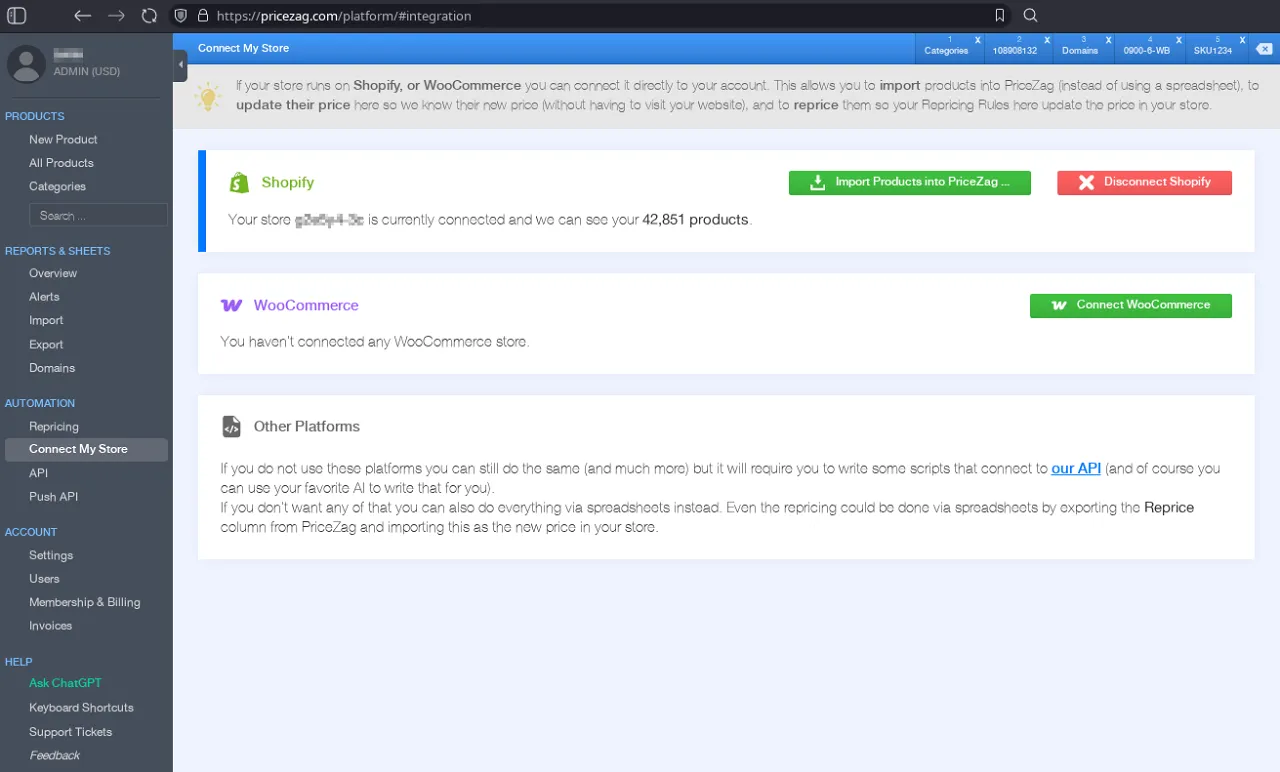
In your PriceZag account, open Automation > Connect My Store and use the Connect Shopify button. After your store is connected, the page identifies the connected store and reports how many products PriceZag can see.
The connection is useful even when you aren't ready to automate prices. You can start by importing products and tracking competitors, then add repricing rules only when you want them.
Import the products you choose, with your own field mappings
The Import Products into PriceZag ... button opens import options rather than automatically copying your entire catalog. You choose which products to bring into PriceZag and how their Shopify information should be represented.
- Choose a product reference: identify imported items using the Shopify SKU, barcode, variant ID or another supported identifier that suits your catalog.
- Organize categories: decide whether product tags or labels should become categories in your PriceZag account.
- Select and review: set the import options and complete the operation with Import Now.
- Import again later: repeat the process when you want to bring in additional products or update your selection.
Imported products retain a link to their matching Shopify product and variant. Behind the scenes, PriceZag can use a reference such as shopify:1234:5678 instead of a normal storefront URL. This is how it knows which Shopify item corresponds to a product in PriceZag, including when a product has multiple variants.
You don't need to build those references by hand. They are part of the direct integration, and they also mean PriceZag doesn't need to revisit your own product page just to discover the price you already have in Shopify. Unlike monitored competitor-page URLs, these direct-integration references do not count toward your monitored-URL capacity.
Keep the "My Price" field aligned with Shopify
Your My Price in PriceZag should reflect what you actually charge in your store. If you update a product's price in Shopify, the integration can update that product's My Price in PriceZag as well, instead of relying on a scheduled browser visit to your own storefront.
That distinction matters when comparing your prices with competitors or calculating a new price. A repricing rule needs a useful view of the product's existing selling price, while your dashboard should not continue displaying an outdated amount after a change in Shopify.
The price synchronization is about your own store. Competitor prices and availability come from a separate monitoring process described below.
Apply repricing rules to products in your Shopify store
PriceZag can calculate a new selling price using the competitors you monitor and the conditions you set. For example, you might price below the lowest in-stock competitor while respecting a minimum based on your product cost. Or you might allow a higher selling price when competing retailers are out of stock.
You create these conditions in Automation > Repricing and assign a rule to the products you choose. PriceZag shows each product's calculated Repricing Amount. With the Shopify integration enabled for automated pricing, that amount can be sent directly to the matching product or variant in Shopify.
This is not a requirement to reprice your whole catalog. Different products can use different rules, or no rule at all. You can also review calculated prices without sending automatic changes to Shopify. See how automatic repricing works for details about cost limits, competitor availability, price confidence and other safeguards.
Shopify connects your store; PriceZag monitors the competition
Connecting Shopify does not mean PriceZag obtains your competitors' prices from Shopify. PriceZag monitors the actual product pages of competing retailers, regardless of whether those retailers use Shopify, WooCommerce or another ecommerce platform.
After importing your own products, associate them with the URLs where other stores sell the same items. PriceZag then uses graphical browsers to monitor those pages, follow prices and stock availability, and build history for comparisons. The resulting data can also power alerts, Excel reports and repricing rules.
Review activity, connection status and errors
The connected-store page includes an Activity Log. It records connection and disconnection events, product imports, updates to your My Price from Shopify, and price changes sent to Shopify through repricing. This gives you a place to investigate which side initiated an update rather than guessing why a price changed.
PriceZag also displays recent connection errors when applicable. If you no longer want the integration, Disconnect Shopify removes the connection and its stored credentials. Your existing PriceZag products are not deleted when you disconnect the store.
Getting started with Shopify
- Connect the store. In PriceZag, go to Automation > Connect My Store, then choose Connect Shopify.
- Import your products. Use Import Products into PriceZag ... to select products and decide how their identifiers and categories are mapped.
- Add competitors. Link your products to the matching product-page URLs on the retailers you want to monitor.
- Use the results. Review market prices, stock, alerts and reports. If you want automated store price updates, assign repricing rules to the appropriate products.
The direct Shopify connection requires PriceZag's API capability, which adds 30% to your membership price. You can enable it in your account's Membership page. You can use PriceZag for competitor monitoring without enabling automatic Shopify updates.
Frequently asked questions
Do I need to import products with a spreadsheet?
No. The Shopify integration can import the products you choose directly from your connected store. Spreadsheets remain an alternative if you prefer them.
Does it work with Shopify product variants?
Yes. The integration associates imported products with Shopify product and variant identifiers so PriceZag can identify the matching store item when synchronizing prices or applying repricing.
Will PriceZag automatically change all my Shopify prices?
No. You decide which products have repricing rules. You can monitor competitors and review calculated prices without enabling automatic changes to your Shopify store.
Can I monitor competitors who don't use Shopify?
Yes. Competitor monitoring works independently of the platform used by each retailer. PriceZag visits their public product pages to collect prices and available stock information.
What happens to my products if I disconnect Shopify?
Disconnecting removes the Shopify connection and its stored credentials. Products already imported into PriceZag stay in your account.