
Multi-user access with detailed permissions
Give employees, managers, accountants and developers their own PriceZag logins. Control which products, reports and settings each person can view or change.
PriceZag is a multi-user competitor price monitoring platform, not a dashboard that everyone has to share under one password. Each person can have their own login, their own settings and specific permissions. You can allow someone to check prices without letting them change prices, or give a product manager access to one part of your catalog without exposing the rest.
This matters when pricing work involves several people: a purchasing manager reviewing competitors, a category manager maintaining products, an accountant checking invoices, or an outside developer connecting your store through the API. They can all use the same PriceZag account without having the same powers.
One PriceZag account, separate users
Your PriceZag account starts with one administrator. An admin can add other users, each with a separate email address, password and display name. There is no practical limit on how many users you can add.
Everyone works with the products and monitoring data belonging to the same PriceZag account, subject to the permissions you assign. Users don't need to pass around the administrator's credentials, and an admin can change their access without changing anyone else's.
Administrator access is different. An admin can manage all parts of the account, including users and permissions. For everyone else, you can decide separately what they may see, add, edit or delete. You don't have to choose between giving someone total access and giving them no access at all.
Detailed permissions, not just "admin" and "viewer"
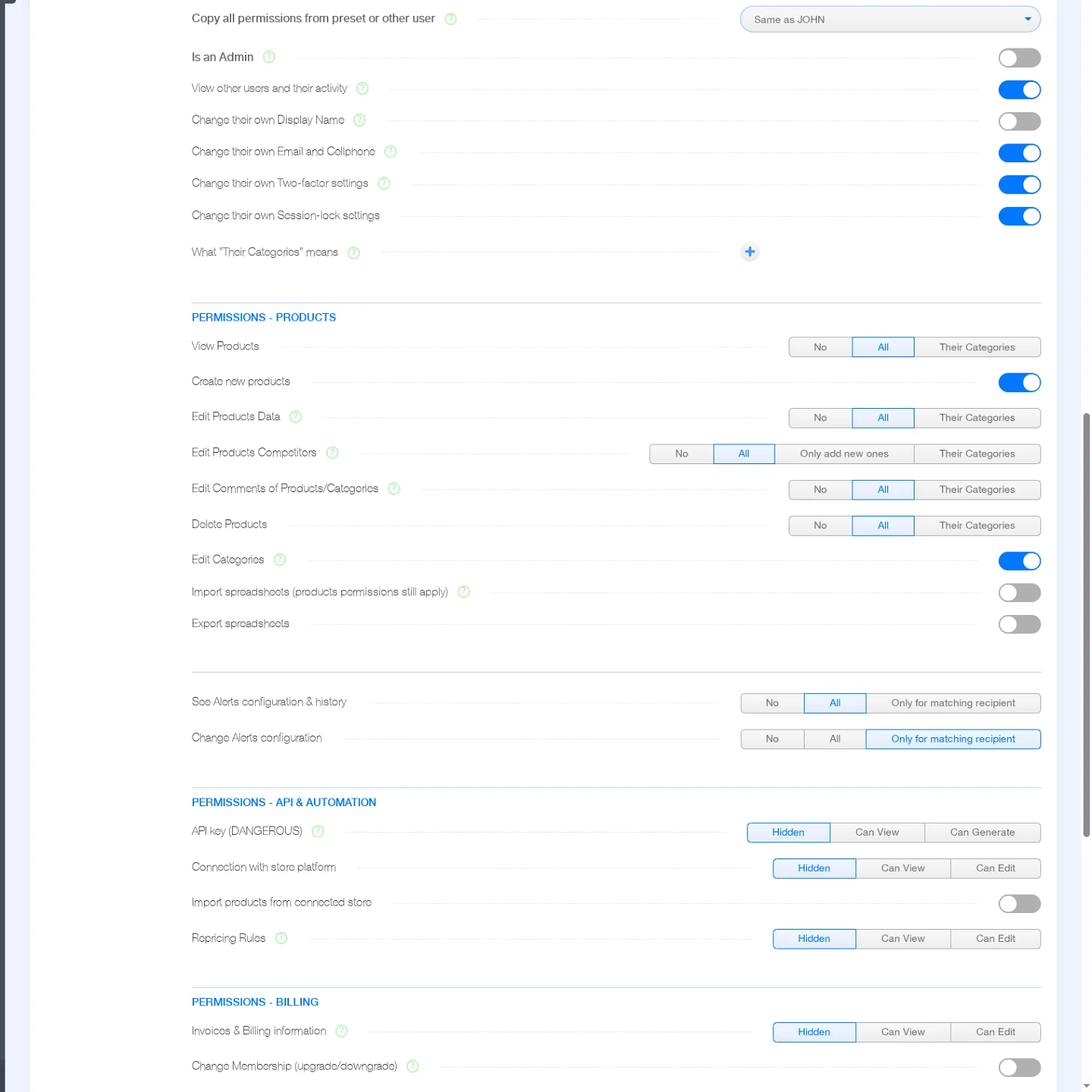
In Account > Users, an administrator can set individual permissions across products, alerts, automation, billing and support. Some permissions are simple on/off choices; others distinguish Hidden, Can View and Can Edit, or allow access only to selected product categories.
| Area | What you can allow or restrict |
|---|---|
| Products and competitors | View products; create products; edit product information such as prices, costs and assigned repricing rules; separately edit competitor URLs, comments or categories; allow or prevent deletion. You can even permit adding competitor URLs without modifying existing ones. |
| Excel and CSV reports | Allow spreadsheet imports or exports independently. Imports still respect the user's permissions to edit the underlying products. |
| Price and stock alerts | Grant access to view alert rules and history, or edit rules, for all recipients, for no recipients, or only for a recipient whose email address or phone matches the user's own. |
| Repricing and store connection | Control whether a person can view or edit repricing rules, manage the connected store, or import products from that store. Editing a rule itself is separate from assigning an existing rule to a product. |
| API access | Keep the API key hidden, let a trusted person view it, or authorize them to generate a new key. These are separate permissions because access to an API key can be highly sensitive. |
| Billing and membership | Choose whether someone can view invoices, view or edit billing information, or change the membership. You can give an accountant invoice access without giving them control over products. |
| Support and users | Control viewing or posting to existing support tickets, opening new tickets, and viewing other users and their activity. Seeing other users does not grant permission to edit them. |
These distinctions matter in practice. Someone updating competitor URLs does not automatically need permission to change pricing rules. A developer working on an integration does not automatically need to view invoices. A marketing employee reviewing market prices does not need permission to delete products.
Give each person access to the product categories they manage
Permissions can be restricted to Their Categories: a set of product categories selected for that user. For example, your power-tools manager may need to see and update only power tools, while your camera manager handles cameras. Neither has to work through the entire catalog.
This is more precise than creating one separate PriceZag account for each department. The products still belong to one account, while each user's view or editing rights can be limited to their assigned categories.
Importantly, category restrictions are applied per permission. You select which categories belong to a user and then choose Their Categories for the applicable permissions, such as View Products or Edit Products Data. Simply assigning categories to a user does not automatically restrict every feature. An administrator remains in control of each permission separately.
Start with a permission preset, then adjust it
You don't have to configure every checkbox from scratch. PriceZag provides permission presets, including Accountant Viewer, Accountant with Billing power, Products Manager (edit), Branding/Marketing (view), Developer Highly Trusted and Developer Freelancer without API access.
You can also copy all permissions from another user. For example, when hiring a second category manager, copy the first manager's permissions and then change the product categories they may access. A preset or copied configuration is just a starting point: every individual permission can be adjusted afterward.
This gives you both the convenience of role-based access and the flexibility of more granular, user-specific permissions. You don't need to force two employees into identical access rights just because they have similar job titles.
See who changed what, and when
Separate users make changes traceable. PriceZag records activity with each user's display name. For example, a product's history might show "Price changed by JOHN", while a change made through automation can appear under "API". This helps you distinguish a colleague's manual edit from an automated update.
In Account > Users, administrators can open an Activity Log for a particular user or the Activity Log of Entire Account to review activity across users. The Users page also shows when each person was last active.
These logs are useful when a product's price, competitor URL or another setting unexpectedly changes. Instead of guessing who made the change, you have a record to investigate.
Control logins and disable access when necessary
Each user has their own password and two-factor authentication settings. PriceZag offers authentication codes on every login or when signing in from a new IP address, as well as the option not to require them. Users can also configure inactivity-based session locking, subject to the permissions granted by the administrator.
If someone leaves your business or an outside contractor finishes a project, an admin can switch on Temporarily disable access. That prevents new logins and ends an active session. You can restore the person's access later with the same switch.
Disabling is often preferable to deleting the user: deleting an account can remove the name associated with its past edits, making historical activity harder to interpret. This way you can stop access while retaining that attribution.
API keys deserve special care. A person who can view or regenerate the key may have much broader automated access than their normal dashboard permissions. PriceZag therefore handles key visibility and key generation as explicit, separate permissions. Read the API documentation before sharing API credentials with outside developers.
How to add someone to your PriceZag account
Only an administrator can add users to your PriceZag account.
- As an admin, go to Account > Users, then click + New User.
- Enter their email address and display name. This gives the person a separate identity for login and activity history.
- Select their initial permissions. Choose a suitable preset, copy another user's permissions, or begin with no access and configure it afterward.
- Send the invitation. PriceZag emails the new user a link to set their own password. They can log in after doing so.
- Review their access. Use Edit User to adjust permissions, product categories and settings whenever their responsibilities change.
Users can also have personal preferences such as interface currency, time zone, text size, technical skills level and the page they see after login. Those settings help each person work in the same account without needing the same dashboard preferences.
Common questions
Can multiple employees use the same PriceZag account?
Yes. An administrator can create separate users with their own login credentials, settings and permissions. They work within the same PriceZag account, subject to the access rights assigned to them.
Can someone see only the products they manage?
Yes. Assign the appropriate product categories to the user and set View Products to Their Categories. You can separately restrict applicable editing permissions to those categories.
Can I give an accountant access without allowing price changes?
Yes. You can grant invoice and billing access without giving the person permissions to edit products, competitor URLs or repricing rules. PriceZag also includes accountant permission presets to simplify setup.
Do people receiving price alerts need a user account?
No. Alert recipients can receive email notifications without having a PriceZag login. Users and notification recipients are separate concepts.
Can I tell which user edited a product?
Yes. Product edit histories identify the user who made a change, and administrators can review individual user activity or an account-wide activity log. Automated API changes can be identified as API.