
WooCommerce integration for tracking and repricing
Connect your WooCommerce store to PriceZag to import products, follow competitor prices and stock, and apply your own repricing rules to store prices.
Running a store on WooCommerce gives you control over your catalog, but it doesn't tell you what other retailers charge for the same products. PriceZag adds that outside view: it monitors competitors' prices and stock, compares them with yours, and can calculate new selling prices according to rules you choose.
The direct WooCommerce integration connects those calculations to your WordPress-based store. You can bring products into PriceZag without preparing import spreadsheets, keep your My Price amounts aligned with WooCommerce, and optionally let PriceZag send repricing results back to the correct products or variations.
What the WooCommerce integration does, and what it doesn't
There are two separate parts to this setup. The store connection exchanges information about your own products and selling prices with WooCommerce. The competitor monitoring comes from PriceZag visiting the public product pages of the retailers you select.
Keeping those jobs separate is useful. You can import your catalog and study competing offers without enabling automatic price changes. When you're comfortable with the monitoring data, you can assign repricing rules to individual products and have the resulting prices applied through the WooCommerce connection.
Connect your WooCommerce store in PriceZag
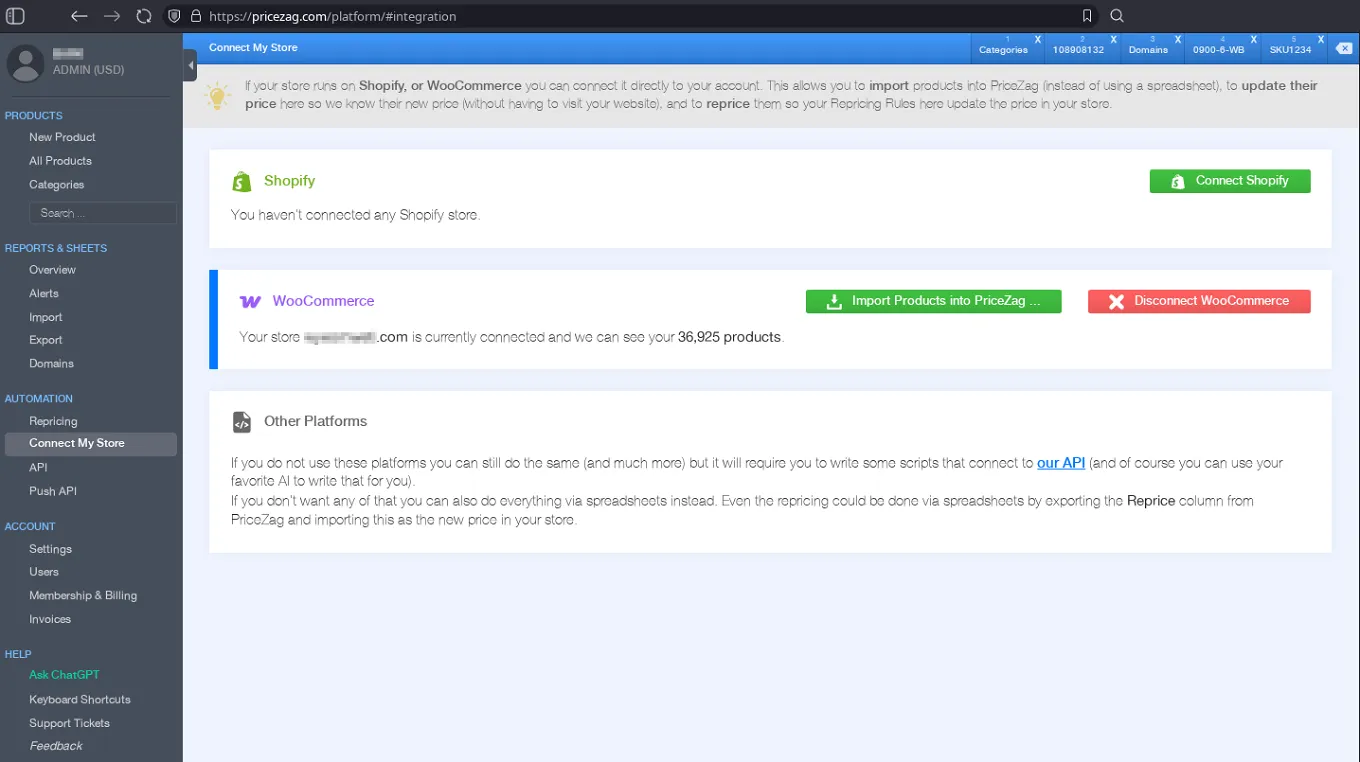
Go to Automation > Connect My Store in your PriceZag account and choose Connect WooCommerce. Once connected, the WooCommerce panel displays your store's connection status and the number of products it can access. This is also where you return to import products, inspect connection activity or disconnect the store.
You don't have to turn on repricing as soon as the connection is established. Importing products and keeping their existing prices up to date can be useful on their own, particularly when you want to compare many WooCommerce items with competing offers.
Import WooCommerce products, including variations
Use Import Products into PriceZag ... to open the import options. This is a controlled import, not a requirement to copy every product in your WooCommerce catalog. You decide which items to bring over and how their information should populate PriceZag's fields.
- Product identification: choose an appropriate reference such as your WooCommerce SKU or a product or variation identifier. PriceZag requires a unique reference code for each product in its own catalog.
- Categories: decide how WooCommerce product categories, tags or other available labels should be represented in PriceZag. PriceZag categories are its own organizational fields, rather than a permanently synchronized copy of WooCommerce's taxonomy.
- Variable products: where a product has variations, the integration can associate a PriceZag record with the appropriate WooCommerce product and variation, not just the parent product.
- Repeatable imports: review your selections and click Import Now. You can run further imports when you need to add other products.
To maintain that association, PriceZag can store an internal reference such as woocommerce:1234:5678, where the values identify the WooCommerce product and variation. A product without a variation can use a product-level reference. These are connection identifiers, not public product-page URLs, and the importer handles them for you.
This also avoids monitoring your own storefront simply to obtain the selling price already available through the connection. Direct-integration references do not use up the monitored-URL allowance reserved for website pages.
PriceZag learns your current WooCommerce prices
When the selling price of an item changes in WooCommerce, its value in PriceZag should change too. The integration periodically retrieves your store's prices to update the corresponding My Price fields. You don't have to wait for PriceZag to visit your own product pages in a browser, or repeatedly upload a spreadsheet containing the latest prices.
This matters even if you never enable automatic repricing. An accurate My Price lets you see where your offer stands among competitors, and helps ensure that any calculated new price is based on a current view of your own store.
If you prefer a manual workflow, PriceZag also supports direct product editing and spreadsheet imports. The WooCommerce connection is an option for automating the exchange with your store, not a prerequisite for competitor monitoring.
Track prices and stock on competing websites
After importing a WooCommerce item, add the URLs of the same product on other retailers' websites. PriceZag visits those pages using graphical browsers and records available information such as price, currency, stock status and, where published, inventory quantity.
That produces more than a snapshot of the lowest price. You can examine historical changes, identify out-of-stock competitors, compare market positions and use the data in alerts or Excel reports. Where a competing website reveals stock quantities, PriceZag may also be able to produce sales estimates.
These monitored competitor URLs are separate from the WooCommerce product and variation references used for your own catalog. Only the website pages being monitored count toward the corresponding URL allowance.
Apply your pricing rules back to WooCommerce
Go to Automation > Repricing to create rules that calculate your selling price from competitor data. You might aim below the cheapest competitor who has stock, impose a minimum based on My Cost, or raise your price when alternatives become unavailable. Each product can have its own rule, and products without a rule don't receive a calculated repricing instruction.
With automatic store updates enabled, PriceZag periodically sends the calculated Reprice amount to the matching WooCommerce product or variation. The product association created during import tells PriceZag where to apply that amount, including in catalogs with multiple variations under a single parent product.
Price changes are not instantaneous: the direct integration processes them at intervals. You can also review repricing calculations without connecting them to automatic changes. For a deeper explanation of cost floors, competing offers, stock conditions and pricing confidence, see Automatic repricing.
Check the activity log or disconnect safely
When a price looks unexpected, the store's Activity Log is a useful first stop. It records connection and disconnection events, product imports, prices read from WooCommerce into PriceZag, and repricing updates sent in the other direction. The connection page can also display recent errors so you can investigate a failed operation.
If you choose Disconnect WooCommerce, PriceZag removes the store connection and its saved credentials. Previously imported products remain in your PriceZag account; disconnecting the integration does not delete them. Without the connection, automatic store price synchronization and direct repricing updates will no longer operate.
A practical order for setting things up
- Connect WooCommerce. Open Automation > Connect My Store and establish the store connection.
- Import selected items. Choose how WooCommerce identifiers, variations and categories map to PriceZag, then click Import Now.
- Attach competitor URLs. Match each imported product with the pages where competing retailers sell that same item.
- Review the market. Use price and stock history, alerts and reports to understand what competing stores are doing.
- Enable repricing if useful. Assign rules only to the items you want to update automatically, and inspect the Activity Log to follow changes sent to WooCommerce.
The direct WooCommerce connection requires PriceZag's API capability, which adds 30% to your membership price. You can enable it in your account's Membership page. You can use PriceZag for competitor monitoring without enabling automatic WooCommerce updates.
Frequently asked questions
Can PriceZag work with WooCommerce variable products?
Yes. PriceZag can associate an imported record with its WooCommerce product and, where applicable, the specific variation. That association is used when reading your current selling price or sending back a calculated price.
Do I have to import my entire WooCommerce catalog?
No. The import tool lets you choose products and their field mappings before running the import. You can import more products later.
Will linking my store immediately change its prices?
No. Connecting WooCommerce and importing products are separate from creating repricing rules. Automatic price updates depend on how you configure repricing and which products have rules assigned.
Do monitored retailers also need to use WooCommerce?
No. PriceZag monitors the product pages of competing websites independently of their ecommerce software. Your WooCommerce integration is for your own store and catalog.
Do WooCommerce connection references count as monitored URLs?
No. Internal direct-integration references are not product-page URLs being visited by PriceZag. The competing retailer URLs you choose to monitor count toward your monitored-URL allowance.
If I disconnect WooCommerce, do I lose the products I imported?
No. Disconnecting removes the store connection and its stored credentials, not the products already in your PriceZag account.