
Excel and CSV reports for competitor pricing
Export competitors' prices and stock alongside your margins and price rankings in color-coded Excel reports or plain CSV files. Choose your columns, schedule emails and download files via API.
PriceZag monitors product prices and availability across ecommerce websites, then lets you export that data in a spreadsheet with the columns you choose. Download a color-coded Excel (XLSX) file, or choose CSV for importing into other software or processing with scripts. Tab-separated CSV is available too.
These are not just lists of competitor prices. You can include your own prices and costs, competitors' stock, price rankings, market averages, amounts calculated from your repricing rules, estimated sales and more. Export your entire catalog or only selected product categories, without manually copying prices from websites.
Reports for different tasks
You don't need one enormous spreadsheet containing every column. Choose the information that's useful for what you're doing:
- Checking your prices: Put your own price, cost and margin next to competitors' prices and rankings to see where you stand before making changes.
- Checking stock: See which retailers have a product available, which are sold out and any inventory quantities their websites provide.
- Reviewing repricing: Export the amounts calculated by your repricing rules alongside your current prices so you can review or use them in your own system.
- Monitoring MAP compliance: Compare retailers' prices against your Minimum Advertised Price. Set My Price to your MAP amount and include My Rank to find products where a retailer may be advertising below it. See MAP monitoring.
- Sharing with different teams: Make a separate report for each category manager or department, with only the products and columns they need.
For example, a weekly price review can be a short XLSX file, while an analyst may want detailed historical data in CSV. Both come from the same monitored products.
Excel reports that show what matters at a glance
For reports you want to review visually, XLSX is the best choice. PriceZag uses cell colors and other formatting so you can recognize important differences without checking every number individually.
- Red and green competitor prices show when another retailer is below or above your own price.
- Colored market averages and price ranges help you see how you compare with the cheapest, most expensive and average offers.
- Strikethrough competitor prices identify offers that are out of stock, so you can distinguish cheap-but-unavailable listings from offers customers can buy.
- Highlighted repricing amounts draw attention to a proposed price that differs from your current one.
- Yellow highlights can identify recently created products or recently edited comments.
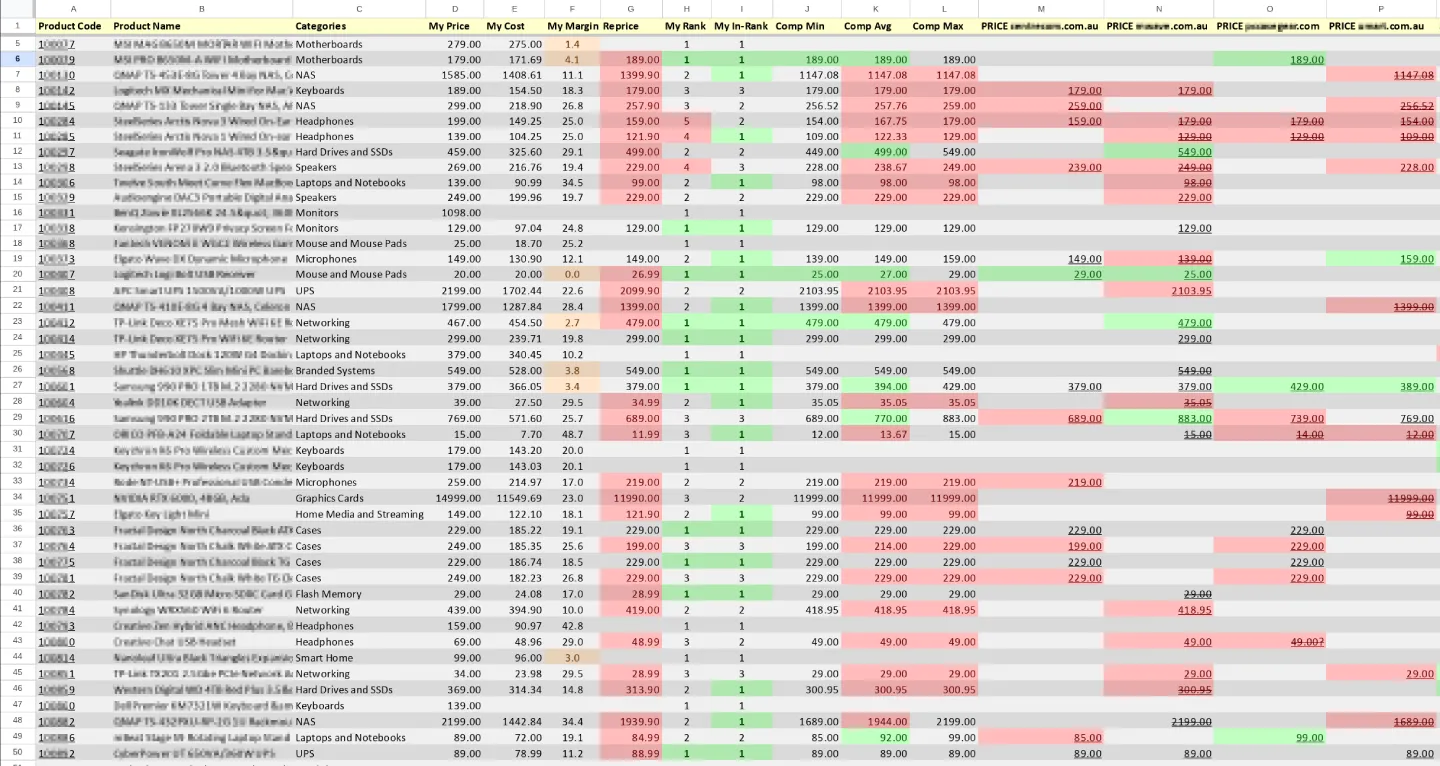
For workflows that need plain data rather than formatting, download a regular CSV or tab-separated file instead. All of these formats contain the data selected in your export settings; colors are an XLSX benefit, not a requirement to use the reports.
Choose exactly which columns you want
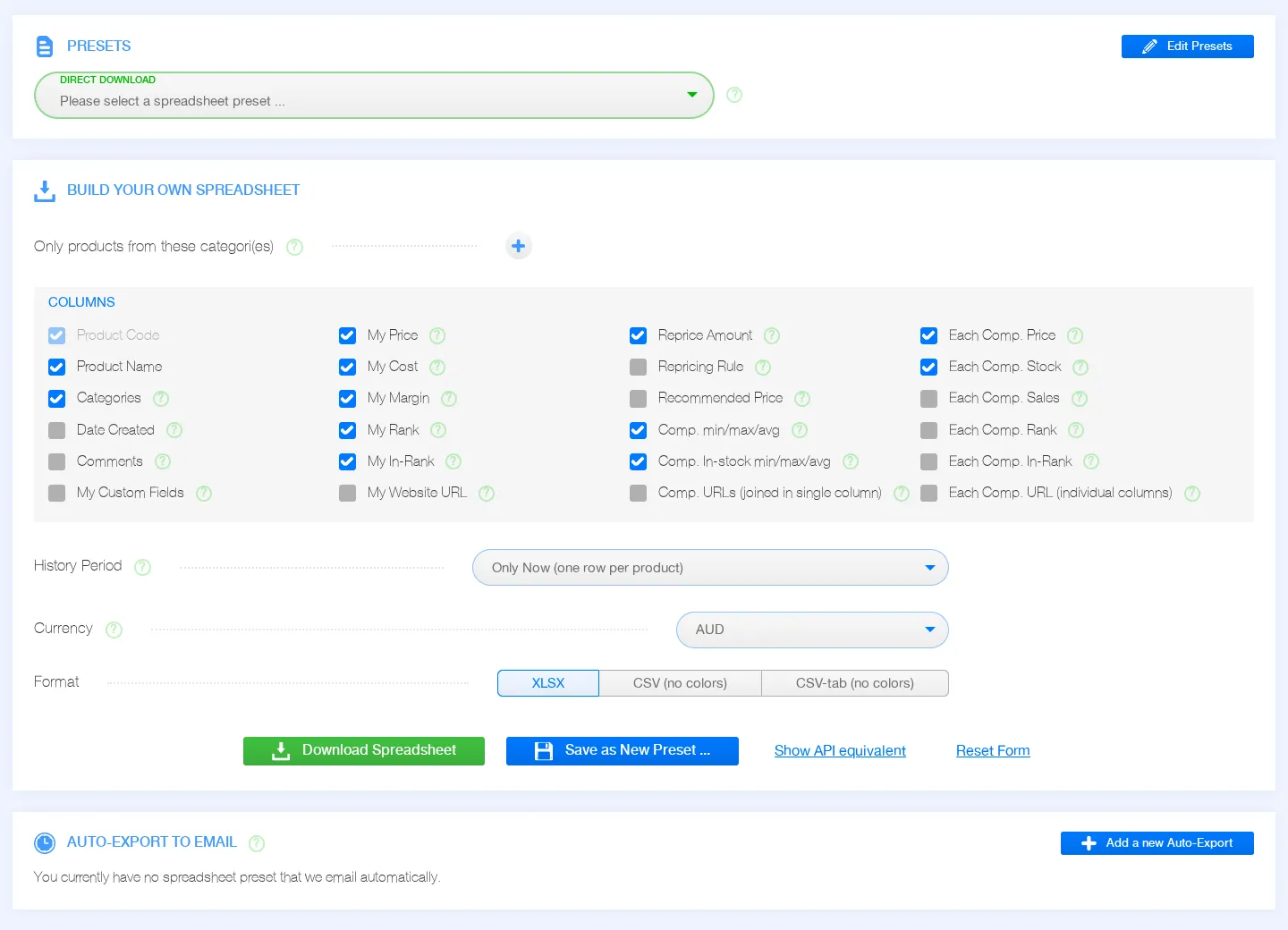
In your PriceZag account, open Reports & Sheets > Export. The Build Your Own Spreadsheet form lets you select columns with checkboxes and include only the product categories you want. Every report includes each product's unique code so you can match its data to your own catalog.
| Information | Available columns | What you can learn |
|---|---|---|
| Product details | Product code, name, categories, creation date, comments and custom fields. | Keep pricing data connected to your own catalog and internal notes. |
| Your pricing | My Price, My Cost, My Margin, My Rank, My In-Rank and your website URL. | See profitability and where you stand against the market, including in-stock offers only. |
| Market overview | Competitors' minimum, maximum and average prices, including separate in-stock calculations. | Understand the overall price range without reviewing every competing offer. |
| Individual retailers | Each competitor's price, stock, rank, in-stock rank and product-page URL. | See exactly which seller is cheaper, available or leading on each product. |
| Sales intelligence | Estimated sales per week for each competitor, when measurable. | Spot potentially fast-moving products using inventory-based sales estimates. |
| Repricing | Reprice Amount and the name of the assigned Repricing Rule. | Review or export the price your rules calculated before applying it elsewhere. |
Exact inventory counts are included when a retailer exposes them; otherwise stock can appear as In or Out. Sales estimates depend on usable inventory history and should not be treated as confirmed orders.
All price and cost amounts can be exported in any of PriceZag's 170 supported currencies. The currency you choose for the spreadsheet does not have to match the original currency of the retailer or your dashboard. PriceZag handles the conversion for you.
We don't lock you in
Some monitoring services leave the original product URLs out of their exports, making it harder to use your data elsewhere. PriceZag does the opposite: you can export all the retailer product URLs you monitor, together in one column or separately in individual columns. Use them in your own systems, pass them to another service or keep a copy for yourself. We'd rather keep you because you like PriceZag, not because your data is trapped here.
Export current data or price history
For a current report, export one row per product with its latest price, stock and rankings. To see how those values changed over time, export a historical report instead.
Historical exports can produce multiple rows per product, with periods such as a day, week, month or quarter. For example, you could export the previous four calendar weeks with one row per product per week, or analyze a whole year month by month. You can also average an entire selected period into a single row for each product.
These historical values are calculated from the recorded observations, not simply copied from the price at the end of each period. When averaging prices, PriceZag weights them by how long each price was in effect. So a price that lasted six days matters more than one that lasted only one day. Rankings and stock information are summarized appropriately for the chosen time window too.
Save your report settings
Once you have selected your columns, categories, history settings, currency and file format, save those choices as a preset. Next time, use Direct Download to get an updated spreadsheet without configuring the form again.
Presets also work with scheduled spreadsheet emails and API downloads. You can keep separate presets for detailed competitor prices, stock reports, category reviews and management summaries.
Auto-Export to Email
Why log in to PriceZag just to download the same spreadsheet every week? With Auto-Export to Email, PriceZag generates a fresh spreadsheet using one of your presets and emails it on the schedule you choose. Send it to any email address - the recipient does not need a PriceZag account.
Different recipients can have completely different reports and schedules. For example:
- Every Mon-Fri morning at 8am: Email the power-tools category manager an XLSX report with prices, stock and rankings for those products.
- Every Friday: Send a purchasing specialist a stock-focused spreadsheet for the categories they follow.
- First and fifteenth of the month: Send management a market summary, using the currency they prefer.
- At month-end: Send an analyst a CSV report they can import into another reporting process.
To set one up, first save the spreadsheet configuration as a preset. Then create an auto-export that selects that preset, its recipient and its schedule. You can choose specific weekdays, specific days of the month (including the last day), the time and time zone. You can even override the preset's currency for a particular recipient.
You also choose how the file arrives:
- As an email attachment: The spreadsheet arrives with the message, ready to open or save.
- As a direct download link: The email contains a unique public link to the generated spreadsheet, available for 7 days. The recipient can download it without logging in.
Because direct links are accessible to anyone who has them, share emails and links with the same care as any business pricing report. Recipients can also stop future auto-export emails using a link in the message, without needing an account. You remain in control of your configured exports and can edit, pause or remove them whenever needed.
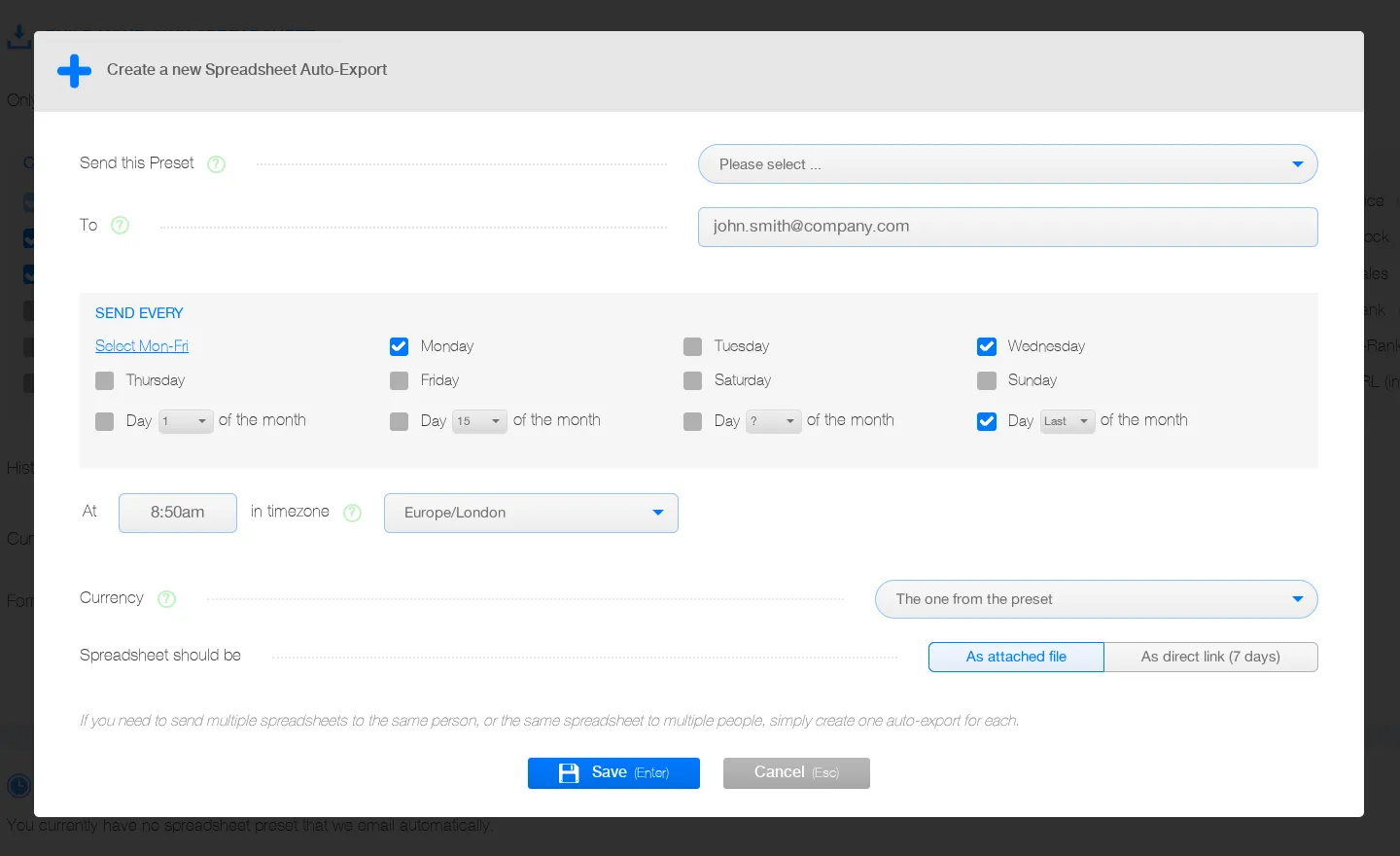
Once the auto-export is configured, there is no need to download and forward the same report manually each time.
Download spreadsheets via API
You can automate spreadsheet downloads in your own software or reporting process using the spreadsheetDownload action in the PriceZag API. It generates XLSX, XLS, CSV and tab-separated CSV files using your chosen columns, currencies, product categories and history settings. You can also use a saved preset instead of sending every setting each time.
You don't have to write the API request from scratch. In your account's Export form, select the columns and options you want, then click Show API equivalent. PriceZag displays the matching request data and a curl command that downloads that exact spreadsheet. You can use it as the starting point for an automated script or your own reporting system. API access depends on your plan.
Don't want to write code? You can download reports and configure recurring spreadsheet emails directly from our dashboard.
Common questions
Do I need Microsoft Excel to use these reports?
No. XLSX files can be opened in many spreadsheet programs. You can also choose CSV or tab-separated CSV, which are widely supported by other tools and scripts.
Can I export stock information as well as prices?
Yes. Select stock columns for the retailers you monitor. Where a website shows a numerical inventory count, PriceZag can include that number; otherwise the report can show availability as In or Out. You can combine stock data with price rankings and in-stock market averages.
Can I download only one product category?
Yes. Select one or several categories in the Export form, or leave the category filter empty to export all products. A preset can remember that choice, so different managers can each receive reports for their own categories.
Are auto-export emails limited to PriceZag users?
No. A spreadsheet can be sent to any email address. Each auto-export has its own preset, schedule, currency option and choice of attachment or public download link.
Does a historical report contain every individual price change?
Historical spreadsheets can organize recorded prices, stock and related statistics into daily, weekly, monthly or other periods. Each row summarizes the selected period; price averages are weighted by how long each value lasted. To see individual changes over time, use the price and stock history graphs in PriceZag.
Can I use Excel reports with my current ecommerce platform?
Yes. Reports are generated from the products and retailer URLs monitored in PriceZag, independently of which ecommerce platform you use. XLSX and CSV files are useful for internal analysis, sharing with a team or moving data into another system.