
Screenshots and history of competitor product pages
See what competitors' pages looked like when we checked prices and stock. Verify our readings with high-resolution screenshots, save PNG evidence, and review image history.
Other price trackers may tell you what a competitor charged. We show you the page where we found the price. Every time we visit a monitored product page, we capture a high-resolution PNG screenshot of what the website displayed. You can check the price and stock for yourself. And if we ever extract the wrong value, the screenshot can expose our mistake. We don't ask you to take our readings on faith.
These screenshots are included with your competitor price and stock monitoring, with no separate screenshot fees. Capturing full browser pages and storing high-resolution images takes considerably more resources than recording numbers alone. That is why comparable screenshot histories are hard to find in price-monitoring services. We think being able to verify the data is worth it.
Why save screenshots of competitor websites?
A number in a report tells you what was detected. A screenshot helps you understand why. Here are some situations where that difference matters:
- Verify an unexpected price. A retailer suddenly appears much cheaper. Many monitoring services would leave you with just a reported number and no way to check what their software saw. With PriceZag, inspect the screenshot for the displayed offer, promotional wording, and correct product or variant. If we picked the wrong price, you can see that too.
- Check stock changes. If PriceZag detects that a product went out of stock or came back, review the availability message the website displayed at the time.
- Document possible MAP violations. Brands and distributors can save the page showing an advertised price below their Minimum Advertised Price (MAP) and refer to it when contacting a retailer.
- Resolve questions with your team. Instead of saying "the price was different yesterday," show the page PriceZag captured during that visit.
This is one reason screenshots are such a useful addition to price monitoring: a retailer can change its product page after PriceZag checks it. The saved image preserves what was visible during the earlier visit.
A picture of the page, plus the detected data
We monitor websites using real graphical browsers, which allows us to capture the rendered page rather than relying only on the HTML source or a number extracted by a simple script. Producing and storing these PNG images requires substantially more resources than saving prices alone, but it gives you a way to inspect the original source of the data.
When you open a screenshot, a bar above the image shows the price and currency PriceZag detected, its confidence percentage for that price, and the detected stock status. Depending on what the website reveals, stock may be available, unavailable, unknown, or an actual inventory quantity.
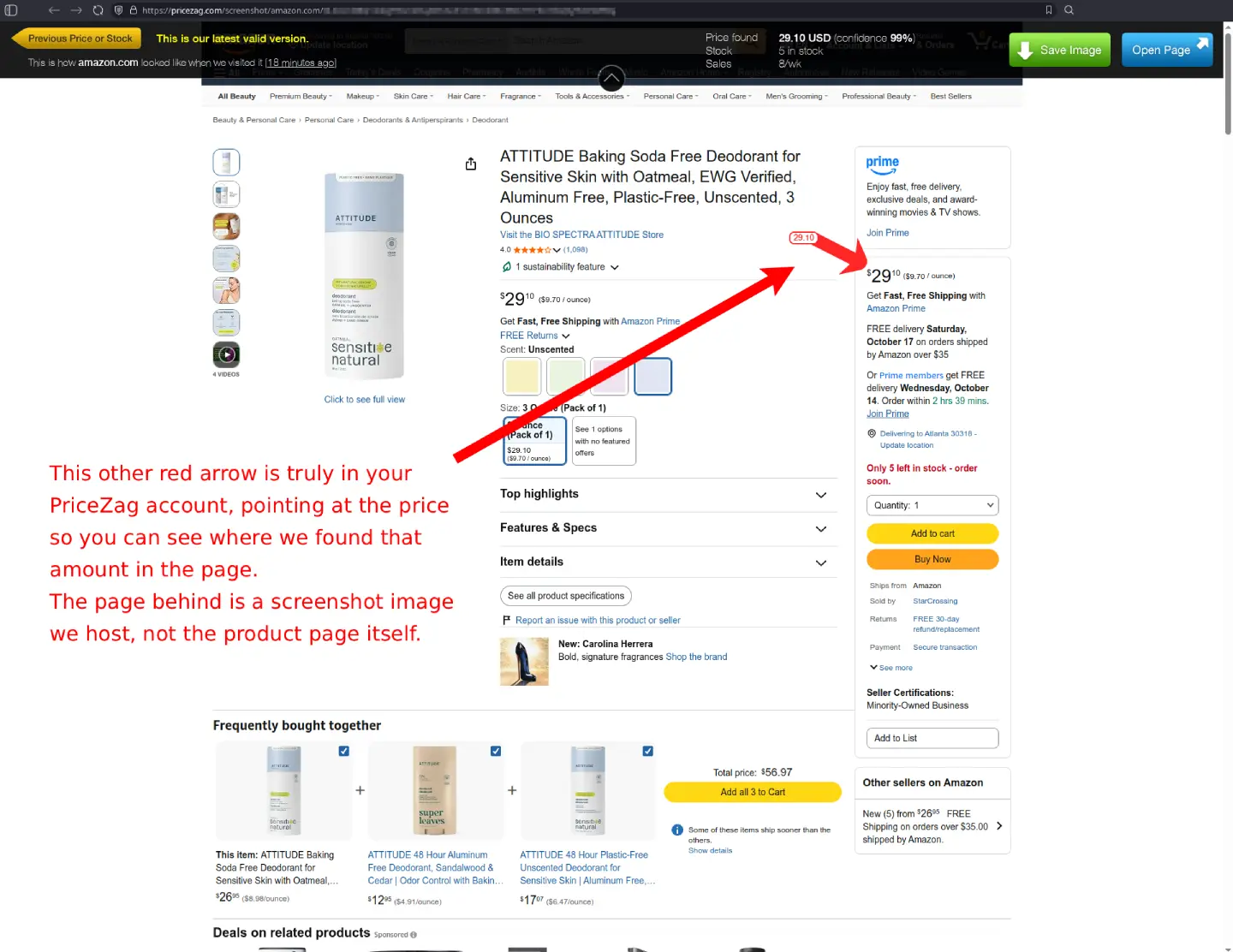
The confidence percentage helps you decide when to take a closer look. For example, if a page contains several prices, you can compare the value PriceZag selected with what the screenshot actually shows. It's a practical way to check the quality of the monitoring data, not just take it on faith.
The camera icon is right where you need it
You don't need to open a separate screenshot tool or set up a recording system. Look for the camera icon wherever PriceZag presents a retailer's monitored data:
- In a product's details: Open a product in your PriceZag account and click the camera icon next to a competitor's price to see the latest saved page.
- In email alerts: Click the camera icon beside a retailer's price or stock change to see the screenshot captured when that alert was triggered.
- In retailer listings and alert history: Camera icons also appear alongside monitored retailer URLs and alerts, so you can investigate the relevant observation directly.
That email link is especially handy. Anyone you send the link to can open that specific screenshot without a PriceZag login; it doesn't mean your screenshots are published in a public listing. If an alert reports a competitor dropping a price, the linked image shows what their page looked like when we detected the change, even if the retailer has since changed it again.
Go back through about a month of screenshots
PriceZag keeps approximately one month of screenshot history for monitored product pages. This is different from visiting a competitor's website now: the live page tells you what is there today, while an earlier screenshot can show what was there when we checked it.
In the screenshot viewer, Previous Price or Stock lets you step back to an earlier visit where the detected price or stock differed. You can follow those earlier changes without opening dozens of nearly identical images from visits when nothing happened.
For longer-term comparisons, PriceZag also keeps numerical price and stock history in its graphs. Screenshots add the visual context behind those numbers.
Save the PNG, or share the screenshot link
The screenshot viewer has two particularly useful buttons: Save Image downloads the PNG to your computer, and Open Page opens the retailer's live product page so you can compare it with the captured version.
Screenshot links can be opened without logging in to PriceZag. That makes it easy to send one to a colleague or a retailer when discussing a price discrepancy or a possible MAP policy violation. If you need an image for your own records beyond the normal screenshot retention period, use Save Image while it's still available.
Get screenshot PNG URLs through the API
You can also use screenshots in your own systems. The PriceZag API can return the latest screenshot URL for each monitored retailer page, so a script can retrieve and download the PNG files automatically.
For example, the productGet and productGetAll actions accept the withScreenshots option. When enabled, the response includes a screenshotURL for the latest available image of each competitor listing. You can use those URLs for internal archives, reports, or your own review process. This is optional; you can use all the screenshot features in the dashboard without writing code.
Common questions
Does PriceZag really save an image of each product page it visits?
Yes. PriceZag uses real browsers to visit monitored product pages and captures screenshots of those visits. This is part of the underlying price and stock monitoring system, not a separate browser extension you have to install.
How long are screenshots kept?
The normal screenshot history covers approximately one month. You can use Save Image to keep a PNG yourself for longer. Numerical price and stock history is available separately through the monitoring graphs.
Can I access a screenshot from an email alert?
Yes. PriceZag places camera icons next to relevant retailer changes in its email alerts. Clicking one opens the screenshot from the visit that triggered the alert, and the link does not require a PriceZag login.
Can I download screenshots automatically?
Yes. Use productGet or productGetAll with withScreenshots in the API to obtain the latest screenshot URLs, then download the available PNG files with your own script.